

Get
93% Off!
on Lifetime Exclusive Deal
Don’t Miss out this deal, it comes with Password Manager Free of cost.

When was the last time you saw an iPhone user boasting about their phone’s camera? Probably 5 seconds ago. And, that’s for good reasons. For example, you can use iPhone as webcam for Mac, Windows, and apps. But guess who’s the star of the show? It’s the iPhone’s continuity camera. Using this, you can use iPhone as webcam and leverage high video quality rather than spend a fortune on a fancy webcam device.
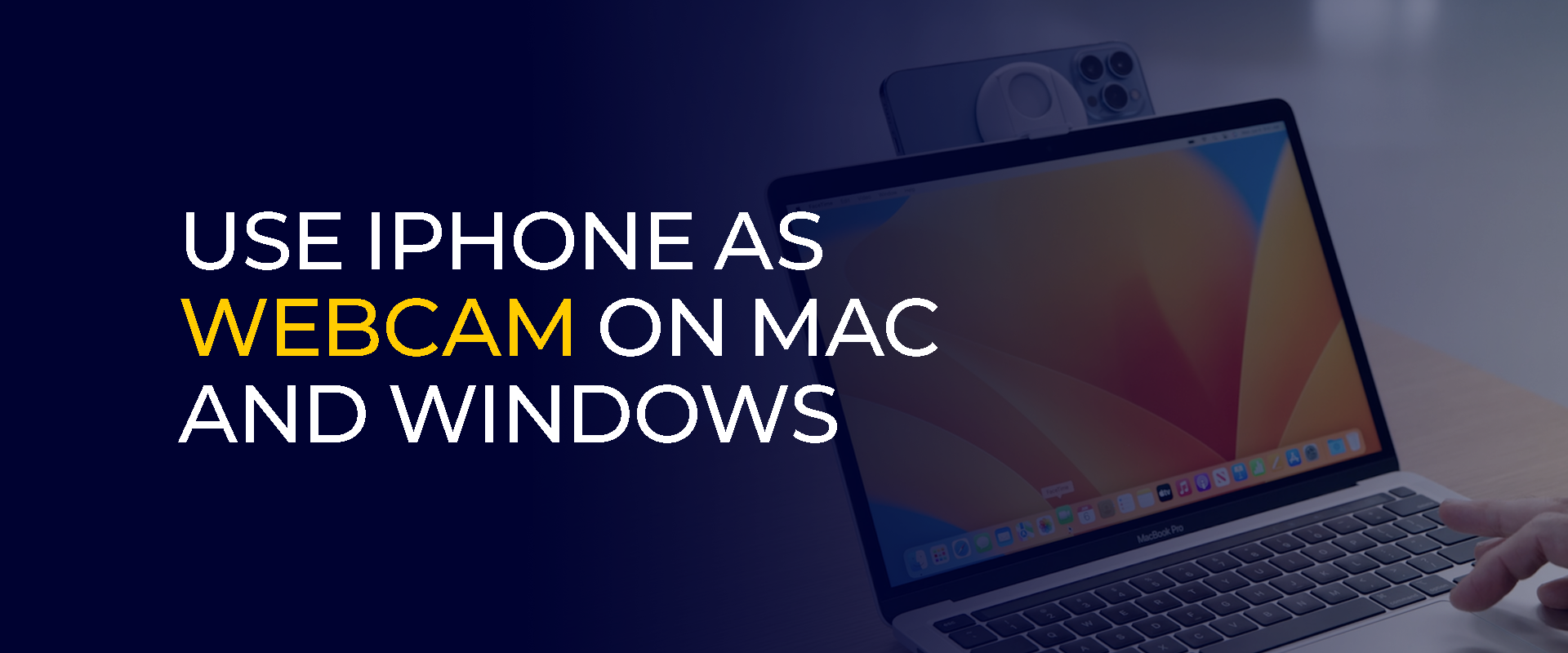
That said, this guide covers how to use iPhone as webcam for PC and chat apps like Zoom, Meet, and Discord. Following that, we’ll cover a brief troubleshooting guide if you see the “Continuity Camera Not Working” error.
Note: While your phone is the most accessible, it’s also the most targeted device for data theft. We recommend connecting to a VPN, like FastestVPN, for improved digital security.
You can use your iPhone as a Webcam on Mac via the Continuity Camera. Sounds like a new feature? It’s always been there; instead, it’s your iPhone’s built-in camera that enables you to use your iPhone as a webcam on Mac. Simply put, here’s what makes the Continuity Camera a stand-out iPhone feature:
However, continuity offers a max of 1080p, i.e., if you’re looking for a higher video resolution with your webcam, such as a 4K video, then you might find other webcams and tools better. But it’s usually best to use the built-in continuity cam for a seamless user experience. And if you’re using iPhone as a webcam on Mac, then here’s a setup tutorial:
Here are the key requirements of using iPhone as webcam for Mac:
Once you fulfill all the requirements, here’s a setup tutorial:
Once done, you can stop using your iPhone as a webcam by either closing the app on your Mac that you’re using the continuity camera on or disabling it via your iPhone, similar to the screen recording feature.
Loved reading about the features of a continuity camera? Guess what: you can’t use it as a webcam for Windows. Instead, you must either install a reliable third-party app such as iVCam and others. For how to use an iPhone as webcam, we recommend reading the reviews and ratings of whatever software you install for using iPhone as webcam for Windows.
Before heading to the setup process, here are the requirements for using your iPhone webcam for PC:
Once you checkmark all the above-mentioned boxes, you can set your iPhone as a webcam for PC:
Whether the device’s built-in camera isn’t working or you don’t prefer the full-view exposure its camera gives, using your iPhone as a webcam for Zoom or Meet is a low-cost and effective solution.
You can use your iPhone as a webcam for video conferencing apps on Windows and Mac. Since your iPhone and Mac follow the same Operating System, you can use the continuity app to use your iPhone as the webcam. However, you must install a third-party app to use the iPhone as a webcam for Windows.
Using your iPhone as a webcam for Zoom is quite effortless due to the Continuity app’s compatibility with Mac. Follow the above-mentioned tutorials for enabling the Continuity app on iPhone.
You can leverage advanced continuity camera features, such as Desk View and Center Stage, on iPhone 11 and later models.
You can only use your iPhone as a webcam for Zoom on Widows via a third-party app. For example, you can use EpocCam or others.
Why buy a webcam for your game session recordings if your iPhone already gets the job done? As mentioned in the previous tutorials, you can either leverage the Continuity Camera on Mac or a third-party app for Windows.
Continuity Camera won’t work on the earlier iOS and macOS versions. Ensure that you checkmark the following requirements before continuing.
Enable the continuity app on iPhone, as mentioned in the above-mentioned tutorials.
Similar to Zoom and Meet, you must use a third-party app like EpocCam.
Despite updating your macOS Ventura or your iPhone, if the Continuity Camera still doesn’t work–we’ve got you covered.
If you’re using Zoom, Meet, Discord, or any other video conferencing apps and can’t see your iPhone as the video input device, then the continuity app isn’t enabled.
The Continuity Camera doesn’t work if it’s incompatible with certain apps.
The continuity camera might lead to a choppy or low-resolution delayed video.
You might experience poor audio quality, which might feel echo-y, or sometimes, there is no audio at all.
There can be other unexpected issues connecting the continuity camera and your Mac/PC.
You can use your iPhone as a webcam via the continuity camera. However, if you’re willing to use your iPhone as a webcam on your Windows PC, then you must install a third-party app to make the continuity camera compatible with the PC.
You can swipe left from the lock screen. It will open the iPhone camera.
You can use the Continuity Camera to connect your iPhone to your Mac as a webcam. Here’s how to do that:
You can use your spare iPhone as a webcam via the continuity camera. Here’s how to enable it: Settings > General > AirPlay & Handoff.
You can use iPhone as webcam for Mac via the continuity camera. You can enable it by: Settings > General > AirPlay & Handoff. However, you need an app to use your iPhone as a webcam for Windows.
You can use your iPhone as a webcam for Zoom, Meet, Discord, and other video-conferencing or chatting apps via iPhone’s continuity app. However, the continuity app is only compatible with Mac devices. Meanwhile, for Windows, you must use a third-party streaming app to support your iPhone as a webcam.
© Copyright 2026 Fastest VPN - All Rights Reserved.
Don’t Miss out this deal, it comes with Password Manager Free of cost.