


Get
93% Off!
on Lifetime Exclusive Deal
Don’t Miss out this deal, it comes with Password Manager Free of cost.

Every time you open an app on your iPhone, there is a good chance it wants to follow you around. Not physically, but digitally, of course, and if you think you’re being paranoid, you’re not. Many apps try to track what you do across other apps and websites so they can build a profile about you and sell that information to advertisers. The good news is that Apple has built several tools directly into iOS that allow you to turn that off. Not sure how to get started? This guide shows you exactly how to stop app tracking on iPhone using only the settings Apple provides.
TIP – While a VPN may not stop app tracking on your iPhone, it can prevent malicious targeted ads from ruining your device and data. Consider using a reliable VPN for iPhone that works and is secure.
Before jumping to the tutorials, it’s better to understand what “tracking” means in this context. You may have noticed that apps that want to track you often ask for permission to access a unique identifier on your phone called the Advertising Identifier.
This identifier does not contain your name or email address, but you can think of it as a digital license plate for your device. Companies use this identifier to connect your activity across different apps.
For example, if you look for or are looking at some bath and body products in one shopping app, a completely different social media app might show you ads for those exact shoes a few minutes later. This especially happens when you don’t buy the product and leave the website. That also happens because both apps accessed your advertising identifier and shared that information with advertisers.
When you block tracking, the app can no longer access that identifier. It won’t completely stop advertisements, but at least they’ll be generic instead of creepily specific to your browsing history.
Apple introduced a feature called App Tracking Transparency with iOS 14.5 in 2021. This feature is designed to ensure every app asks for your explicit permission before it can track you across other external apps and websites. You’ve definitely noticed the pop-ups many times every time you download and open new apps.
The pop-up gives you two choices:
It’s very common for most people to tap “Allow” just to make the pop-up go away quickly. But did you know that each time you do that, you are giving away more of your privacy? This happens a lot on your smartphones, particularly on iPhones. Below, you’ll find tutorials on how to stop app tracking on iPhone.
Here are a couple of methods showing you how to stop app tracking on iPhone. This is best in case one doesn’t work for you:
Whenever you download a new app and open it for the first time, Apple will require that app to show you a tracking request pop-up. This is your first and simplest chance to stop app tracking on iPhone. Here’s what you need to do:
That is it, it should work normally now. As mentioned, you will still see ads, but they won’t be monitored or targeted ads.
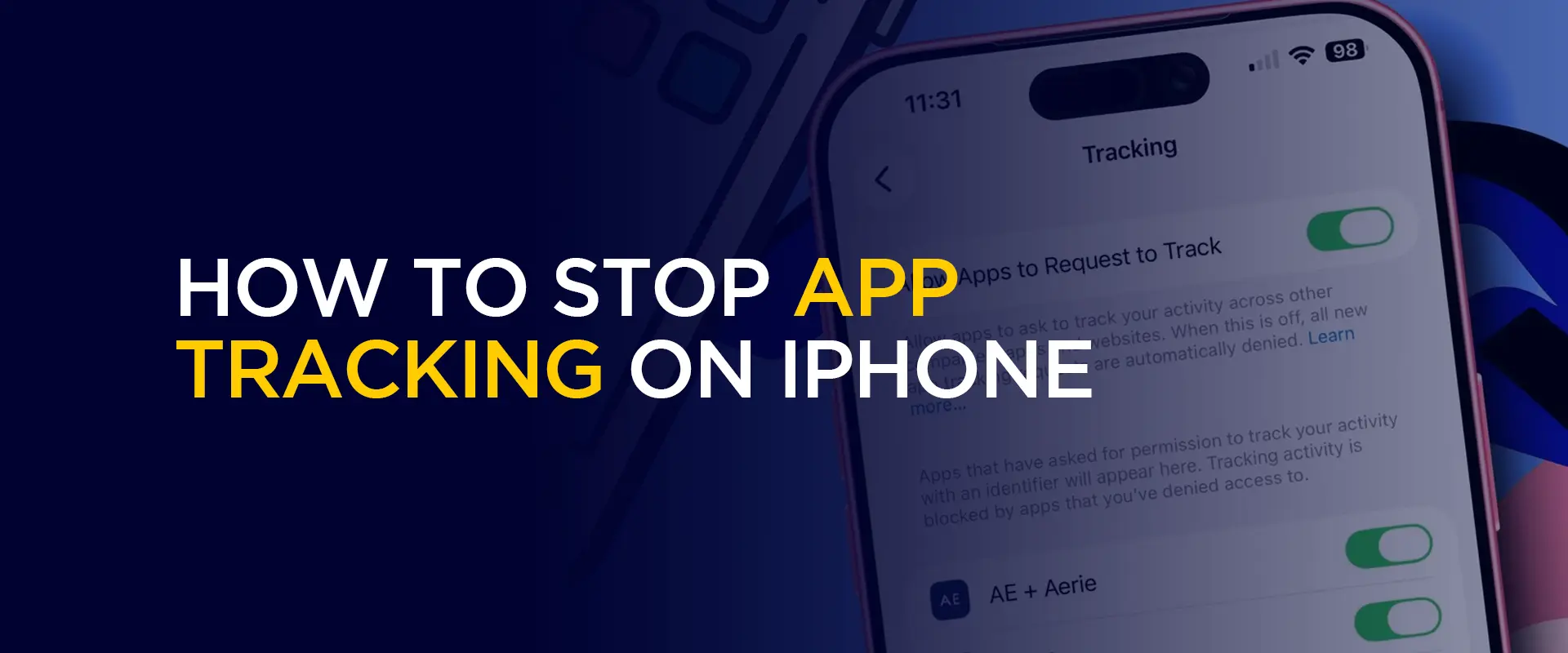
This is the best for those who want to turn off tracking for all apps at once. Apple gives you an option that lets you stop app tracking on iPhone automatically for every app. This is the fastest and most complete way to protect your privacy. Here’s what to do:
When you enable this setting, there are two important things that take place:
It’s okay if you already have a few apps that are allowed to track you. Or, maybe you do want some apps to track you for whatever reason. In either case, you can manage tracking permissions one app at a time. With that said, here is how you can review and tweak the app tracking permissions individually on iPhone:
These changes always take effect immediately, so you don’t have to restart your phone or close the apps. However, if you don’t see a particular app listed, it means the app has never requested tracking permission in the past.
Don’t confuse the two; app tracking and location tracking are two different things. When you stop app tracking, like in the tutorial above, it does not automatically stop apps from accessing your location. Location tracking is controlled separately in iOS.
Many apps do not need to know exactly where you are. Weather apps, restaurant finders, auto services, and maps are obvious exceptions. However, apps like a calculator app or a note-taking app have zero reason to access your location. With that said, here is how to check which apps have access to your location so that you can limit it:
Here are the options:
Now simply select only minimal apps to track your location, and remove the rest.
So now, even when you allow an app to see your location, you do not have to let it see exactly where you are. iOS lets you share only an approximate location instead of your precise address. Here is how to turn off the precise location sharing on iOS:
Last on the list of methods showing you how to stop app tracking is locking and hiding sensitive apps. To lock an app, it requires Face ID, Touch ID, or your passcode to open:
If you need to hide an app completely:
No. You will still see advertisements. They just will not be personalized or targeted based on your activity across different apps and websites. The tracking setting specifically blocks access to Apple's advertising identifier. However, apps could still use other methods to track you. This includes methods like analyzing your behavior within their app. The setting prevents other apps from tracking, but does not prevent an app from collecting data about how you use that specific app. No, it doesn’t. These are completely separate controls. You can manage location tracking separately by going to “Settings” > “Privacy & Security” > Location Services.” Some apps might claim or trick you into allowing tracking for certain features to work. In most cases, this is not true. The app can still function without tracking you. Try tapping "Ask App Not to Track" first. If a feature genuinely does not work, you can always go back into Settings > Privacy & Security > Tracking and re-enable permission for that specific app only. Yes, you should. It’s a required decision to reduce targeted ads and to protect your privacy. It helps prevent apps from accessing advertising identifiers on your devices. To get started, go to the “Settings” > “Privacy & Security” > “Tracking,” and then turn off “Allow Apps to Request to Track." Will blocking tracking make ads disappear completely?
Can apps still track me even if I disable "Allow Apps to Request to Track"?
Does blocking app tracking also block location tracking?
What if an app asks me to allow tracking to use a specific feature?
Should you turn off app tracking?
How do I stop apps from tracking me on iPhone?
That’s a wrap! You now know how to stop app tracking on iPhone. Apple has given iPhone users tools to control app tracking. The single most effective thing you can do is go to “Settings” > “Privacy & Security” > “Tracking” and turn off “Allow Apps to Request to Track.” That one toggle stops every app from tracking you across other apps and websites, and you will never see another tracking request pop-up again.
Take Control of Your Privacy Today! Unblock websites, access streaming platforms, and bypass ISP monitoring.
Get FastestVPN
© Copyright 2026 Fastest VPN - All Rights Reserved.
Don’t Miss out this deal, it comes with Password Manager Free of cost.
