You can see how this popup was set up in our step-by-step guide: https://wppopupmaker.com/guides/auto-opening-announcement-popups/
A Detailed Guide on GeForce Experience Error Code 0x0003
GeForce Experience is an application developed by NVIDIA for computers that use NVIDIA GeForce graphics cards. In the app, users can keep their drivers updated, and it improves their gaming experience. However, sometimes, when you open the app, you will receive the “GeForce Experience error code 0x0003”. In this blog, you can learn about this error in detail and how to resolve it easily; no advanced technical knowledge is required.
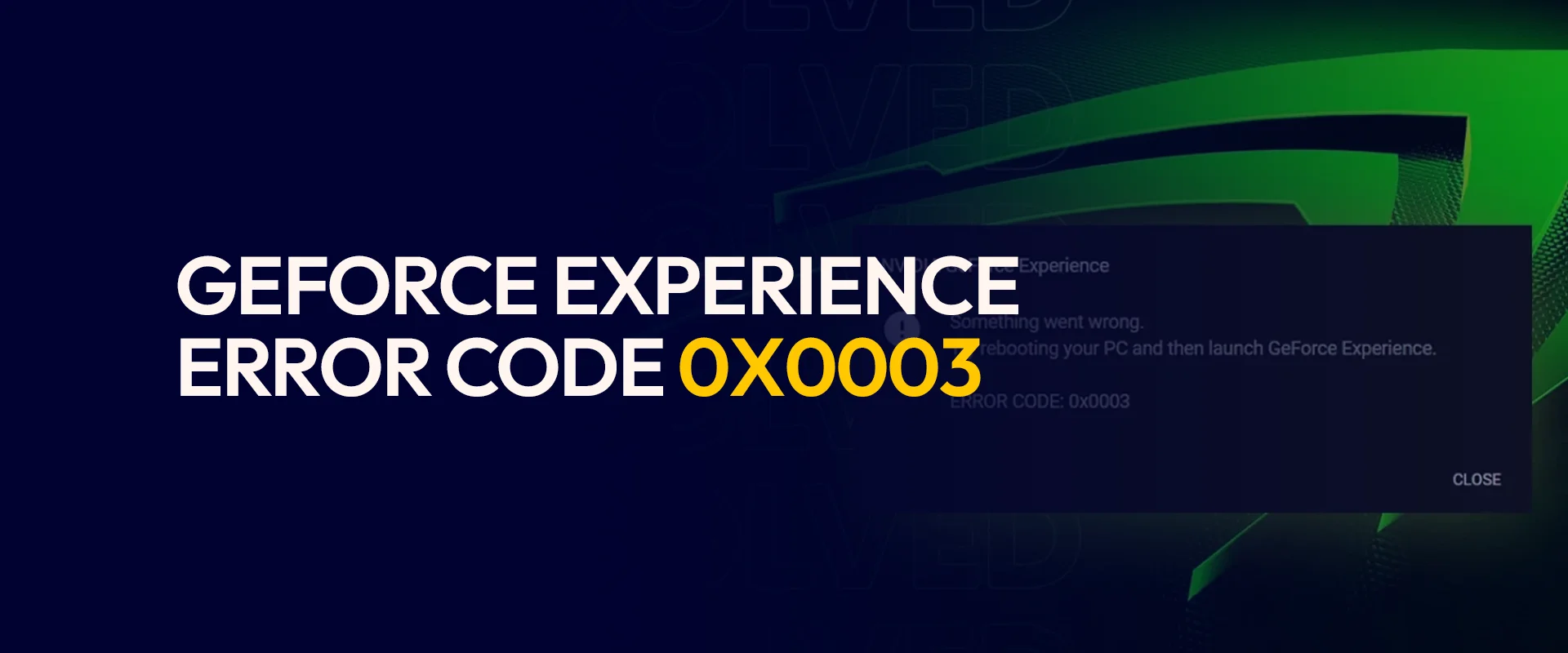
What is the GeForce Experience error code 0x0003?
It’s an error that occurs when the GeForce Experience app cannot connect properly to the services or settings you need to use.
The reasons for this error can be the following:
NVIDIA Failed Service: GeForce Experience works or depends upon the NVIDIA services. It helps it to communicate with the NVIDIA graphics card. If anything happens with the services, it will show you error code 0x0003.
Corrupt Installation: During the installation or when files are damaged, it can also cause this error.
Older Drivers: If you have not updated the drivers, they may not work with the new versions of the GeForce Experience application.
Windows Update: On older versions of Windows, GeForce Experience might not communicate properly with the graphics card.
Software Conflicts: At times, the software installed on your computer can prevent this app from working and can also cause error code 0x0003.
Network Issues: Error code 0x0003 also occurs due to incorrect network configurations, which means GeForce will not be able to connect to the services from NVIDIA
How to Fix GeForce Experience Error Code 0x0003?
Here are simple and effective methods that you can follow to get rid of this error:
Restart Computer
One of the basic rules is to restart your computer once an error comes up, since it is the quickest way to fix the glitches. Make sure you have saved all your work, then restart your system to get rid of the GeForce Experience Error Code 0x0003.
Manual Services Restart
GeForce Experience depends upon NVIDIA programs that are running in the background, if any of the programs stop working, this app will not work efficiently as it should. Here is how you can restart NVIDIA services manually:
- Press Windows + R
- Type services.msc
- Press Enter.
Find the given services:
- NVIDIA Display Container LS
- NVIDIA LocalSystem Container
- NVIDIA Network Service Container
- NVIDIA Telemetry Container
- Right click on the service and restart.
- Click twice on the services.
- Under the Startup type dropdown, check if it is set to Automatic.
- Now, restart the GeForce Experience app.
Enable NVIDIA Telemetry Service
If the NVIDIA Telemetry Container is not able to communicate with your computer, You must check if it’s enabled or not. If it’s disabled it can show you GeForce Experience error code 0x0003. Here are the steps that you can enable it:
- Open services.msc.
- Search for NVIDIA Telemetry Container.
- Right-click and choose Properties.
- Open the Log On tab.
- Check the box for “Allow service to interact with desktop”.
- Click Apply and then OK.
- Restart the system and open GeForce Experience.
Update NVIDIA Graphics
Older NVIDIA drivers also cause GeForce Experience code 0x0003. You must install the latest version of drivers to avoid compatibility issues. Here is how you can do it:
- Visit the NVIDIA Driver Download page.
- Enter your graphics card model and Windows version.
- Download the latest driver.
- Open the file and start the installation.
- Choose Custom (Advanced) Installation.
- Once done, restart the computer.
Reinstall GeForce Experience
If the previous methods won’t work for you for Error Code 0x0003, simply reinstall the GeForce Experience Application, since it might have missing or damaged files. Reinstallation mainly fixes the errors and installs the latest file versions:
Update Windows
GeForce Experience Error code 0x0003 does not only occur with the app itself. However, the error can occur if your Windows needs an update, the drivers are missing, or there is another issue with your Windows. Once you repair Windows, the issue will be resolved, and you will not get this error.
Close Error Causing Programs
If other programs are open on your system along with the GeForce Experience app, it can most likely show you Error Code 0x0003. To avoid this, close running programs, such as antivirus software or other software. After doing so, just restart the app.
Is GetForce Experience Error Code 0x0003 Serious?
Most of the time, it’s not something major; only the GeForce Experience App will be affected; however, you will still be able to play games on your system. Since it won’t impact your gaming, you can use the troubleshooting methods later on.
FAQs
On reinstalling, does GeForce delete game settings?
No, on reinstallation, GeForce Experience does not delete your previous game settings. However, you need to set up some features again, including in-game overlay, keyboard shortcuts, and others.
Can an unupdated Windows cause GeForce Experience error code 0x0003?
Yes, it can be one of the reasons for Error code 0x0003. To avoid this, keep your Windows and NVIDIA drivers up to date.
Can I know if my graphics card is damaged with this error?
The damaged graphics card is not the cause of GeForce Experience error code 0x0003. This is usually the case when there is an issue with your software or drivers.
What to do if GeForce Experience Error 0x0003 won’t work?
If the troubleshooting methods above didn’t work for you, contact NVIDIA support; they will guide you further professionally. However, make sure to contact them from their official website and not from the numbers given online.
Conclusion
GeForce Experience Error Code 0x0003 is an error that usually shows up; it’s not difficult to fix. Moreover, this error won’t impact GPU performance and will let you game efficiently without getting lag. Also, there are troubleshooting methods like restarting the GeForce Experience app and restarting the system; you can restart NVIDIA services manually, and there are other methods that you can use for the fix. It also appears when Windows isn’t working properly, so it’s important to update Windows.
Take Control of Your Privacy Today! Unblock websites, access streaming platforms, and bypass ISP monitoring.
Get FastestVPN Subscribe
0 Comments