
You can see how this popup was set up in our step-by-step guide: https://wppopupmaker.com/guides/auto-opening-announcement-popups/
Why Can’t I Edit or Unsend iMessage? Easy Fixes That Work in 2026
You send an iMessage and spot a typo immediately. Or you send it to the wrong person. Your heart sinks. You long-press the message bubble to edit or unsend it. But nothing happens. No Edit option. No Undo Send. It feels really frustrating.
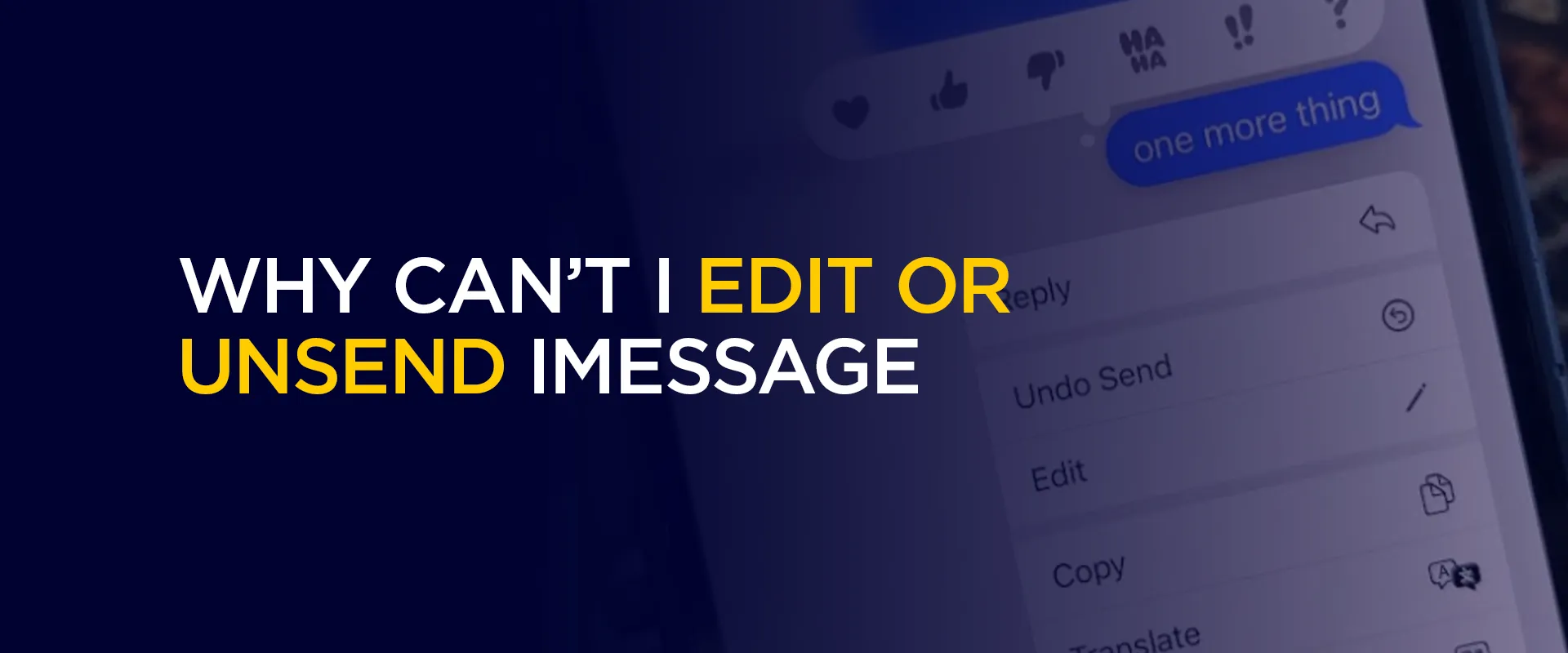
Most of us have faced this. Apple’s edit and unsend features are great for fixing mistakes, but they don’t always appear. This guide explains why it happens and gives simple fixes that anyone can try. It also shares easy tips to prevent the problem next time.
These features came with iOS 16 and still work fine in 2026. You can edit a message up to five times within 15 minutes. Or you can unsend it within about 2 minutes. They are very useful when they work.
Sometimes the options don’t show up. The time limit may have passed. It could be a green bubble (regular text) instead of a blue iMessage. Your phone or the other person’s phone may be on an older iOS version. iMessage might be turned off. Or there could be a weak connection or a small glitch.
The good news is most problems have quick and easy fixes. Start with the simple steps and you’ll usually solve it fast.
Why Can’t You Edit or Unsend Right Now? The Usual Suspects
Let’s break it down like we’re chatting. Here are the most common culprits:
- Time’s up, buddy: You only get a short window. Edit within 15 minutes (and no more than five tweaks per message). Unsend? Just 2 minutes. After that, it’s locked in. Apple built it this way to keep things fair—no endless rewriting or deleting drama.
- It’s not a real iMessage: If your message shows as a green bubble (SMS or MMS to an Android phone or non-Apple device), forget editing or unsending. These only work with blue bubble iMessages between Apple users.
- Software mismatch: Both you and the person you’re texting need iOS 16 or newer (or the equivalent on iPad/Mac). If they’re on an older version, you might see the options on your end, but it won’t actually change for them.
- iMessage isn’t turned on: On your phone or theirs. Sometimes it gets toggled off accidentally, or after a big update.
- Network hiccups or server blips: Spotty Wi-Fi, weak cellular signal, or even a rare Apple server issue can block things. (Quick check: Apple’s system status page usually shows if it’s them, not you.)
- App glitches or old-school bugs: The Messages app can get cranky after updates, or your phone just needs a fresh start.
Sound familiar? These pop up all the time, especially right after software updates when everyone’s phones are adjusting.
Quick Fixes to Get Editing and Unsending Working Again
Okay, let’s roll up our sleeves. Start with the easiest stuff and work your way down. These steps fix it for 90% of people—no tech knowledge required.
1. Double-check the basics first (takes 30 seconds)
Open your Messages app and find the sent message. Long-press the blue bubble. If you don’t see “Edit” or “Undo Send,” ask yourself: Has it been more than 15 minutes? Is it green? If yes, that’s your answer, switch to iMessage by making sure the contact has it enabled too (more on that below). Pro tip: In group chats with mixed devices, it sometimes works if at least one person is on iMessage.
2. Update your iPhone (and nudge your contact)
Outdated software is the #1 villain here. Go to Settings > General > Software Update. If something’s available, download and install it. Both you and your texting buddy need the latest iOS for full magic. (If they’re on Android, sorry—no dice on edit/unsend.) After updating, restart your phone. Many folks notice the options magically appear post-update.
3. Turn iMessage on (yours and theirs)
On your iPhone: Settings > Messages > toggle iMessage on (it might say “iMessage needs to be enabled” sometimes after big updates—toggle it off, wait 10 seconds, then back on).
Now, politely text your friend: “Hey, can you check Settings > Messages and make sure iMessage is on?” If it’s off on their end, your chats might default to plain old SMS, killing the features. This one fix solves it for tons of people.
4. Force quit the Messages app
Swiping up from the bottom (or double-click home button on older phones) to see all open apps. Swipe up on Messages to close it completely. Reopen it fresh. This clears any temporary glitches without losing data.
5. Restart your iPhone
The classic “turn it off and on again.” Hold the side button (and volume down on newer models) until the power off slider appears. Slide to shut down, wait 30 seconds, then turn it back on. Simple, but it resets a lot of background stuff.
6. Check your connection and reset network settings if needed
Make sure you’re on strong Wi-Fi or cellular. If messages say “Not Delivered,” that’s a clue. For stubborn cases: Settings > General > Transfer or Reset iPhone > Reset > Reset Network Settings. (Don’t worry—it won’t delete your apps or photos, but you’ll need to re-enter Wi-Fi passwords.) This refreshes everything wireless-related and often brings back edit/unsend.
7. Peek at Apple’s server status
Head to apple.com/support/systemstatus in your browser. Look for iMessage, if it’s green and “Available,” it’s not them. If yellow or red? Wait it out; Apple usually sorts it fast.
8. One more deep-clean trick: Sign out and back into iMessage
Settings > Messages > Send & Receive > tap your Apple ID > Sign Out. Then sign back in. This re-activates things, especially handy after iOS updates.
If you’re in a group chat, test with a one-on-one message first to narrow it down.
Handy Tips to Make iMessage Editing a Breeze
Once it’s working, here’s how to use it like a pro:
- Long-press the message bubble > tap Edit (or Undo Send). Type your fix, then hit the blue checkmark.
- Recipients on the latest iOS see “Edited” with a history of changes (tap it to view). Older iOS users might just get the original plus a note.
- Unsend removes it entirely for everyone (with a “You unsent a message” placeholder).
- Bonus: In iOS 18+, you get extras like text effects or polls, but edit/unsend stays the same core feature.
To avoid issues upfront, proofread before hitting send, or use the new “Send Later” option if it’s available in your iOS version. And remember, these only work in iMessage—not regular texts.
What If Nothing Fixes It?
Rare, but if you’ve tried everything and it’s still a no-go, it could be a deeper bug (especially post-major update). Back up your iPhone via iCloud or computer, then contact Apple Support through the Get Support app or apple.com/support. They can run diagnostics remotely. Worst case, a full restore from backup often does the trick.
Final Thoughts
There you have it! Your no-nonsense guide to conquering the “can’t edit iMessage” headache. Most times, it’s just a quick settings tweak, update, or restart away from working perfectly. Apple’s made texting way more forgiving with these features, but like anything techy, it needs the right setup.
Take Control of Your Privacy Today! Unblock websites, access streaming platforms, and bypass ISP monitoring.
Get FastestVPN
Subscribe
0 Comments



