

You can see how this popup was set up in our step-by-step guide: https://wppopupmaker.com/guides/auto-opening-announcement-popups/
- FastestVPN
- How To
- How to Use iPhone as Webcam for Mac, Windows, Zoom, and Discord
How to Use iPhone as Webcam for Mac, Windows, Zoom, and Discord
By Michael S. Davis No Comments 10 minutes
When was the last time you saw an iPhone user boasting about their phone’s camera? Probably 5 seconds ago. And, that’s for good reasons. For example, you can use iPhone as webcam for Mac, Windows, and apps. But guess who’s the star of the show? It’s the iPhone’s continuity camera. Using this, you can use iPhone as webcam and leverage high video quality rather than spend a fortune on a fancy webcam device.
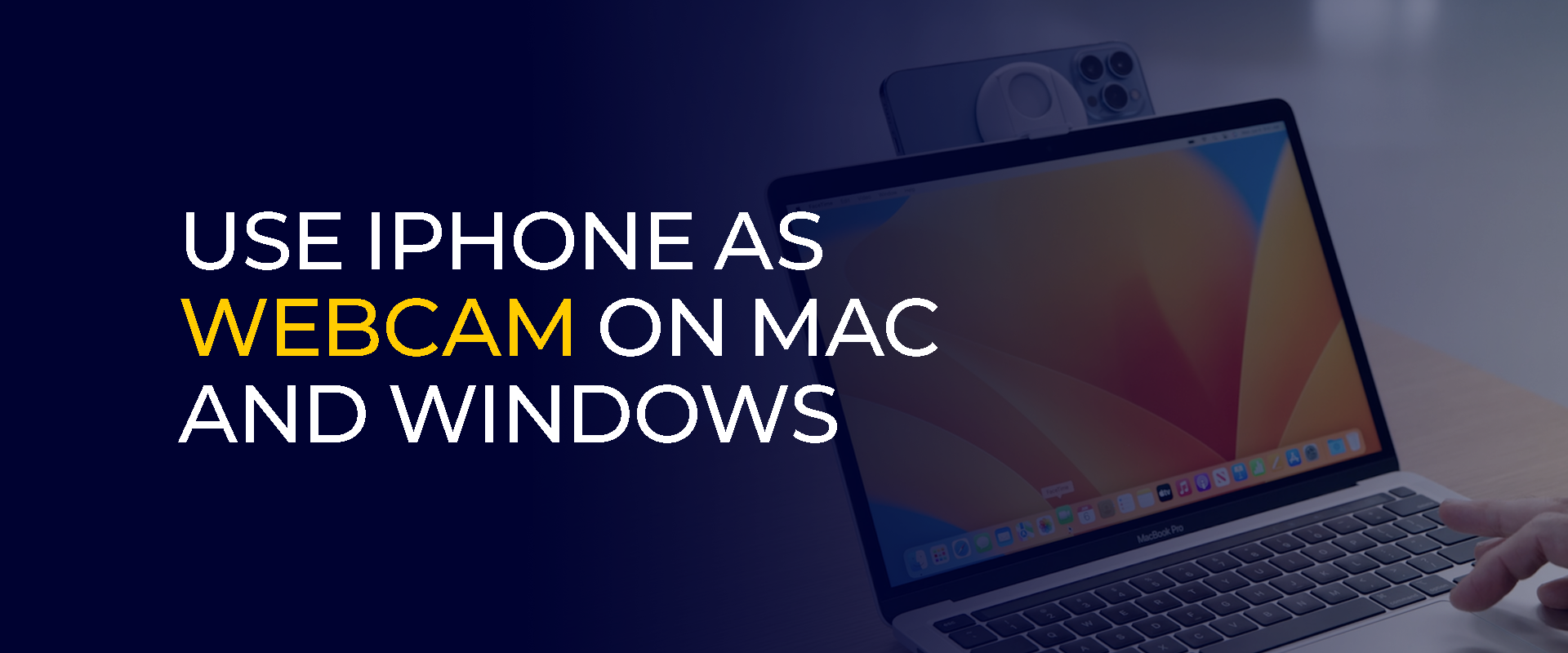
That said, this guide covers how to use iPhone as webcam for PC and chat apps like Zoom, Meet, and Discord. Following that, we’ll cover a brief troubleshooting guide if you see the “Continuity Camera Not Working” error.
Note: While your phone is the most accessible, it’s also the most targeted device for data theft. We recommend connecting to a VPN, like FastestVPN, for improved digital security.
Highlights
- Use Continuity Camera (macOS Ventura 13.0+, iOS 16+). Features include high-quality video, Desk View, and seamless integration.
- Use third-party apps like EpocCam or iVCam for webcam functionality.
- Ensure devices are updated and compatible.
- Use a stable network or USB for better quality.
- Check app and device settings for mic and video issues.
How to Use iPhone as Webcam on Mac
You can use your iPhone as a Webcam on Mac via the Continuity Camera. Sounds like a new feature? It’s always been there; instead, it’s your iPhone’s built-in camera that enables you to use your iPhone as a webcam on Mac. Simply put, here’s what makes the Continuity Camera a stand-out iPhone feature:
- Superior video quality
- Studio light and portrait mode
- Ultra-wide camera
- Easy setup
- Seamless integration
- Improved audio
However, continuity offers a max of 1080p, i.e., if you’re looking for a higher video resolution with your webcam, such as a 4K video, then you might find other webcams and tools better. But it’s usually best to use the built-in continuity cam for a seamless user experience. And if you’re using iPhone as a webcam on Mac, then here’s a setup tutorial:
Setup Requirements
Here are the key requirements of using iPhone as webcam for Mac:
- A tripod or a stand to mount your iPhone.
- Mac running the macOS Ventura 13.0 onwards.
- iPhone updated to iOS 16 or later version (phones released since 2018).
- iPhone features of Desk View, Studio Light, Center Stage, and others.
- A USB cable or a WiFi and Bluetooth connection.
Setup Tutorial for Using iPhone as Webcam on Mac
Once you fulfill all the requirements, here’s a setup tutorial:
- Connect your iPhone and the webcam to the same WiFi network/Bluetooth, or connect both devices via a USB cable.
- Ensure both devices are connected with the same Apple ID.
- Go to iPhone Settings > General > AirPlay & Handoff”.
- Enable Community Camera by toggling the switch.
- Open any app that you need to use the continuity camera on your Mac, and you’ll see that the iPhone is the video input device.
Once done, you can stop using your iPhone as a webcam by either closing the app on your Mac that you’re using the continuity camera on or disabling it via your iPhone, similar to the screen recording feature.
How to Use iPhone as Webcam for Windows
Loved reading about the features of a continuity camera? Guess what: you can’t use it as a webcam for Windows. Instead, you must either install a reliable third-party app such as iVCam and others. For how to use an iPhone as webcam, we recommend reading the reviews and ratings of whatever software you install for using iPhone as webcam for Windows.
Requirements for Using iPhone as Webcam for Windows
Before heading to the setup process, here are the requirements for using your iPhone webcam for PC:
- Install the third-party webcam software.
- Enable WiFi/Bluetooth on both devices or connect both via a USB cable.
- Have the tripod or phone stand ready to mount your iPhone as a webcam.
Setup Tutorial for Using iPhone as Webcam for Windows
Once you checkmark all the above-mentioned boxes, you can set your iPhone as a webcam for PC:
- Log in to the third-party webcam app on your Windows.
- Connect your mobile cam by scanning the QR code via your iPhone.
- Your iPhone camera will now be the video input device.
- Click on Leave or close the app you’re using the webcam on to disconnect your iPhone.
How to Use iPhone as Webcam for Zoom and Meet
Whether the device’s built-in camera isn’t working or you don’t prefer the full-view exposure its camera gives, using your iPhone as a webcam for Zoom or Meet is a low-cost and effective solution.
Requirements for Using iPhone as Webcam for Zoom and Meet
You can use your iPhone as a webcam for video conferencing apps on Windows and Mac. Since your iPhone and Mac follow the same Operating System, you can use the continuity app to use your iPhone as the webcam. However, you must install a third-party app to use the iPhone as a webcam for Windows.
- iPhone must be updated to iOS 16 or later.
- The Mac must be updated to macOS Ventura 13.0 or later.
- iPhone and Mac devices must be connected to the same WiFi network, Bluetooth, or USB cable.
- A tripod or any other support (even a book stack) to mount your iPhone.
- A third-party app like EpocCam or your preferred application.
Setup Tutorial for Using iPhone as Webcam for Zoom and Meet on Mac
Using your iPhone as a webcam for Zoom is quite effortless due to the Continuity app’s compatibility with Mac. Follow the above-mentioned tutorials for enabling the Continuity app on iPhone.
- Open the Zoom app on your Mac device.
- Launch a mock session.
- Go to the camera settings from the bottom corner of the screen.
- Navigate and click on “new iPhone Camera.”
You can leverage advanced continuity camera features, such as Desk View and Center Stage, on iPhone 11 and later models.
Setup Tutorial for Using iPhone as Webcam for Zoom and Meet on Windows
You can only use your iPhone as a webcam for Zoom on Widows via a third-party app. For example, you can use EpocCam or others.
- Go to the Elgato website and install EpocCam.
- Run the installer and follow the on-screen instructions.
- Ensure your iPhone and PC are connected to the same WiFi network.
- Launch EpocCam or your preferred software on your iPhone.
- Allow EpocCam to access your phone’s mic and camera.
- Launch the Zoom app on your PC.
- Go to your Profile > Settings > Video.
- Navigate Camera > EpocCam .
- You should now see your iPhone’s camera feed in the Zoom meeting’s preview window.
How to Use iPhone as Webcam for Discord
Why buy a webcam for your game session recordings if your iPhone already gets the job done? As mentioned in the previous tutorials, you can either leverage the Continuity Camera on Mac or a third-party app for Windows.
Requirements for Using iPhone as Webcam for Discord
Continuity Camera won’t work on the earlier iOS and macOS versions. Ensure that you checkmark the following requirements before continuing.
- The Mac running macOS Venture 13.0 or later
- iPhone running iOS 16 or later version.
- iPhone and Mac/PC are running on the same WiFi network/Bluetooth or connected via USB cable.
- A tripod or a mount, such as a stack of books, to position your iPhone.
Setup Tutorial for Using iPhone as Webcam for Discord on Mac
Enable the continuity app on iPhone, as mentioned in the above-mentioned tutorials.
- Place your iPhone near your Mac and ensure both devices are signed in to the same Apple ID.
- Launch Discord on your Mac.
- Go to the video settings and select iPhone as the camera source.
Setup Tutorial for Using iPhone as Webcam for Discord on Windows
Similar to Zoom and Meet, you must use a third-party app like EpocCam.
- Go to the Elgato website and install EpocCam.
- Run the installer and follow the on-screen instructions.
- Ensure your iPhone and PC are connected to the same WiFi network.
- Launch EpocCam or your preferred software on your iPhone.
- Allow EpocCam to access your phone’s mic and camera.
- Open Discord and select the third-party app as your camera source in the video settings.
- Your iPhone will work as the webcam for Discord.
Is the Continuity Camera Not Working? Troubleshooting Steps
Despite updating your macOS Ventura or your iPhone, if the Continuity Camera still doesn’t work–we’ve got you covered.
1. The Continuity Camera’s Option Doesn’t Appear
If you’re using Zoom, Meet, Discord, or any other video conferencing apps and can’t see your iPhone as the video input device, then the continuity app isn’t enabled.
Troubleshooting Steps
- Check the compatibility of your iPhone to ensure it’s updated to iOS 16 or the later versions. Meanwhile, the Mac must be updated to macOS Ventura 13.0 or later.
- Confirm if the Continuity Camera is enabled. Go to Settings > General > AirPlay & Handoff.
- Ensure your iPhone and Mac/PC are connected to the same WiFi Network, Bluetooth or USB cable. Meanwhile, sign in with your Apple ID on iPhone and Mac or use the third-party software for iPhone to Windows.
- Restart your iPhone and Mac/PC.
2. The Continuity Camera Isn’t Working
The Continuity Camera doesn’t work if it’s incompatible with certain apps.
Troubleshooting Steps
- Ensure that the Mac is running macOS Venture 13.0 or later and the iPhone is running iOS 16 or later version.
- Consult the app’s documentation or support channels for compatibility information.
3. A Choppy Video With Low Resolution
The continuity camera might lead to a choppy or low-resolution delayed video.
- Ensure both devices are connected to a stable WiFi connection.
- Minimize background activities on both devices to ensure a seamless video conferencing experience.
- A wired connection might offer better stability and quality.
4. Poor Audio Quality
You might experience poor audio quality, which might feel echo-y, or sometimes, there is no audio at all.
Troubleshooting Steps
- Check your iPhone’s microphone to see if it’s muted. If yes, then unmute it.
- Check the application’s Mic settings to ensure it’s not muted from there. If yes, then unmute it.
- Use a separate Mic or a headset for improved audio.
5. Other Issues
There can be other unexpected issues connecting the continuity camera and your Mac/PC.
Troubleshooting Steps
- Check for software updates on your iPhone and Mac. If there are any, update it to the latest version.
- Reset network settings on both settings.
- Contact Apple Support if the issue persists.
FAQs – How to Use iPhone as Webcam
How do I use my iPhone as a webcam?
You can use your iPhone as a webcam via the continuity camera. However, if you’re willing to use your iPhone as a webcam on your Windows PC, then you must install a third-party app to make the continuity camera compatible with the PC.
How do I use the camera tutorial on my iPhone?
You can swipe left from the lock screen. It will open the iPhone camera.
How do I connect my iPhone as a webcam to my computer?
You can use the Continuity Camera to connect your iPhone to your Mac as a webcam. Here’s how to do that:
- Connect your iPhone and the webcam to the same WiFi network/Bluetooth, or connect both devices via a USB cable.
- Ensure both devices are connected with the same Apple ID.
- Go to iPhone Settings > General> AirPlay & Handoff.
- Enable Continuity Camera by toggling the switch.
- Open any app that you need to use the continuity camera on your Mac, and you’ll see that the iPhone is the video input device.
How can I use my spare iPhone as a webcam?
You can use your spare iPhone as a webcam via the continuity camera. Here’s how to enable it: Settings > General > AirPlay & Handoff.
How to use iPhone as webcam without app?
You can use iPhone as webcam for Mac via the continuity camera. You can enable it by: Settings > General > AirPlay & Handoff. However, you need an app to use your iPhone as a webcam for Windows.
Final Note
You can use your iPhone as a webcam for Zoom, Meet, Discord, and other video-conferencing or chatting apps via iPhone’s continuity app. However, the continuity app is only compatible with Mac devices. Meanwhile, for Windows, you must use a third-party streaming app to support your iPhone as a webcam.
Take Control of Your Privacy Today! Unblock websites, access streaming platforms, and bypass ISP monitoring.
Get FastestVPNGet the Deal of a Lifetime for $40!
- 800+ servers for global content
- 10Gbps speeds for zero lagging
- WireGuard stronger VPN security
- Double VPN server protection
- VPN protection for up to 10 devices
- 31-day full refund policy

