You can see how this popup was set up in our step-by-step guide: https://wppopupmaker.com/guides/auto-opening-announcement-popups/
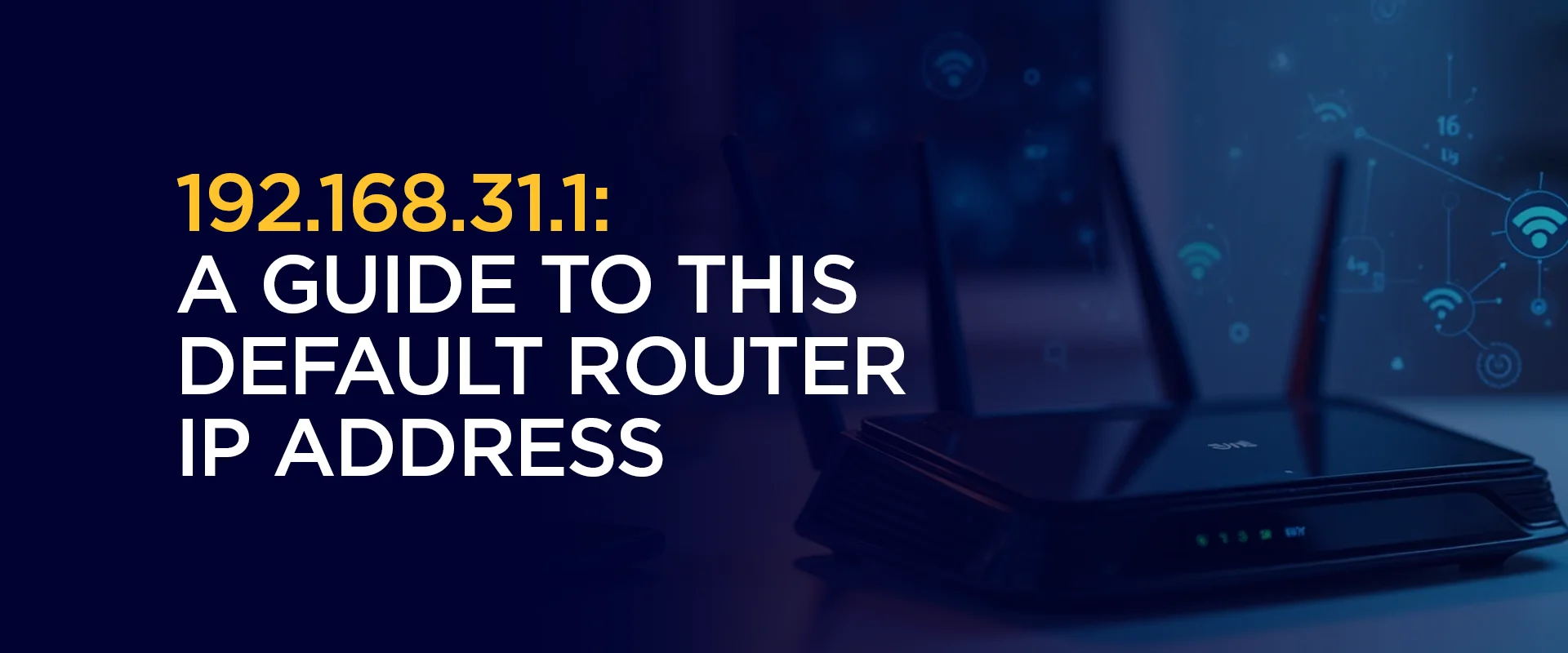
192.168.31.1: A Guide to This Default Router IP Address
If you’ve ever tried to log into your home Wi-Fi router’s settings page, there’s a good chance you’ve come across the address 192.168.31.1. This private IP address is used by several popular router manufacturers, including Xiaomi, Mi, TP-Link, and a handful of other brands, as the default gateway for accessing the router’s administration panel.
Note: While your router’s local network access isn’t directly tied to your internet privacy, many users choose to pair secure router practices with a reliable VPN service such as FastestVPN to add an extra layer of encryption and privacy to their overall internet activity, especially when using public or shared networks.
What Is 192.168.31.1?
192.168.31.1 is a private IPv4 address that falls within the range reserved for local networks by the Internet Assigned Numbers Authority (IANA). Private IP addresses like this one are not routable on the public internet; they exist only within your local network (LAN) and are used to identify devices, including your router, switch, or access point, on that internal network.
Routers use a private IP address as their default gateway, which is essentially the “front door” to the device’s configuration dashboard. When you type 192.168.31.1 into your browser’s address bar, you’re asking your computer or phone to talk directly to the router itself, rather than to a website on the internet. From there, the router serves up a login page that lets you access its settings.
Different manufacturers choose different default gateway addresses. While 192.168.1.1 and 192.168.0.1 are the most common across the industry, many newer Xiaomi and Mi routers, along with some TP-Link and other budget and mesh networking devices, use 192.168.31.1 instead. If your router falls into this category, this address is your gateway to controlling nearly every aspect of your home network.
Why Do Routers Use Private IP Addresses Like This?
Every device connected to your network, like your laptop, smartphone, smart TV, printer, and the router itself, needs a unique identifier so that data can be sent to the correct destination. Public IP addresses are limited in number and are assigned by your Internet Service Provider (ISP) to identify your network as a whole on the Internet. Private IP addresses, on the other hand, are used internally and can be reused across millions of different home and office networks without conflict, because they never leave the local network.
The 192.168.0.0/16 address block (which includes everything from 192.168.0.0 to 192.168.255.255) is one of three ranges set aside specifically for private use. Router manufacturers pick an address from within this block, such as 192.168.31.1, to assign to the router’s own LAN interface. This address then becomes the default gateway that all other devices on the network use to reach the internet and to communicate with the router’s settings page.
How to Access the 192.168.31.1 Login Page
Logging into your router through 192.168.31.1 is a straightforward process, but it does require a few accurate steps. Here’s how to do it on virtually any device:
Step 1: Connect to Your Network
Before you can access the router’s settings, your device needs to be connected to the same network as the router. You can do this either by connecting via Wi-Fi or by plugging an Ethernet cable directly from your computer into one of the router’s LAN ports. A wired connection is generally more reliable for configuration changes, especially if you’re planning to update firmware or change Wi-Fi settings that might temporarily disconnect wireless devices.
Step 2: Open a Web Browser
Open any modern web browser on your connected device, like Chrome, Firefox, Safari, Edge, or another browser of your choice.
Step 3: Type in the IP Address
In the browser’s address bar (not the search bar), type:
192.168.31.1
Some routers may also support a URL-style domain, such as “miwifi.com” or a similar branded address that redirects to the same login page. However, typing the numeric IP address directly is the most universal method and works regardless of brand-specific shortcuts.
Step 4: Enter Your Login Credentials
After pressing Enter, you should be redirected to a login screen. Depending on your router’s brand and model, you may be asked for:
- A username and password (often “admin” for both fields by default)
- Just a password (common with Xiaomi/Mi routers)
- A PIN code printed on a sticker on the router itself
If you’ve never changed these credentials, check the label on the bottom or back of your router, or consult the manual that came with it. Many manufacturers print the default login information directly on the device for easy reference.
Step 5: Explore the Dashboard
Once logged in, you’ll land on the router’s administration dashboard. This is where you can view connected devices, change your Wi-Fi name and password, set up parental controls, configure port forwarding, update firmware, and much more.
Common Login Problems with 192.168.31.1 and How to Fix Them
Even though accessing your router’s settings should be simple, plenty of users run into snags along the way. Here are the most frequent issues and practical fixes.
“This Site Can’t Be Reached” Error
If your browser shows an error saying the page can’t be reached, it usually means one of the following:
- You’re not connected to the correct network. Double-check that your device is connected to the router’s Wi-Fi or plugged into it via Ethernet.
- The router uses a different default IP. Not every router uses 192.168.31.1. Check the sticker on your device or look up your specific model online to confirm the correct gateway address.
- A typo in the address bar. It’s easy to accidentally type 192.168.31.1 as 192.168.3.1 or 192.168.1.31. Re-type it carefully.
Incorrect Username or Password
If you’re sure you’re entering the right credentials but still getting rejected, try these solutions:
- Try the manufacturer’s default credentials. A quick web search for your specific router model plus “default login” can usually confirm the factory settings.
- Check for case sensitivity. Passwords are often case-sensitive, so make sure Caps Lock isn’t accidentally enabled.
- Reset the router. If you’ve forgotten a custom password you set yourself, you may need to perform a factory reset using the small reset button on the device (usually held for 10 seconds with a pin or paperclip). Keep in mind this will erase all custom settings, including your Wi-Fi name and password, port forwarding rules, and any other configurations.
IP Address Conflict
Occasionally, another device on the network might be mistakenly assigned the same IP address as the router, which can prevent you from reaching the login page. Restarting your router and the affected device usually resolves this, as it forces the network to reassign addresses correctly.
Browser Caching Issues
Sometimes, old cached data in your browser can interfere with loading the router’s login page correctly. Try clearing your browser cache, or open the page in a private/incognito window to rule this out.
How to Configure Your Router via 192.168.31.1
Once you’re successfully logged in, there’s a lot you can do from the dashboard. Here are some of the most useful settings to explore.
Changing Your Wi-Fi Name (SSID) and Password
This is one of the most common reasons people log into their router. Within the wireless settings section, you can rename your network (the SSID) to something more recognizable and set a strong, unique password. A strong password should combine uppercase and lowercase letters, numbers, and symbols, and should avoid easily guessable information like your name or address.
Updating Firmware
Router manufacturers periodically release firmware updates that patch security vulnerabilities, improve stability, and sometimes add new features. Check the “System” or “Firmware Update” section of your dashboard regularly, and install updates as they become available. Running outdated firmware is one of the most common ways routers become vulnerable to outside attacks.
Setting Up a Guest Network
Most modern routers accessible via 192.168.31.1 allow you to create a separate guest Wi-Fi network. This is a great way to give visitors internet access without exposing your main network, connected devices, or shared files to them.
Managing Connected Devices
The dashboard typically includes a list of every device currently connected to your network, along with its IP and MAC addresses. This is useful for spotting unfamiliar devices that might indicate someone is using your Wi-Fi without permission.
Parental Controls and Device Scheduling
Many routers let you set time-based restrictions for specific devices, block certain websites or categories of content, and pause internet access entirely for selected devices, handy for managing kids’ screen time or work-from-home distractions.
Port Forwarding
If you run a home server, host online games, or use certain remote-access applications, you may need to configure port forwarding. This setting tells the router to direct specific types of incoming internet traffic to a particular device on your network, rather than blocking it by default.
Why Does My Router Use 192.168.31.1 Instead of 192.168.1.1?
Different manufacturers configure different default gateway addresses for their devices. While 192.168.1.1 is the most widespread choice across the industry, brands like Xiaomi and Mi, along with some other manufacturers, use 192.168.31.1 as their standard. There’s no functional advantage to one address over another; it’s simply a manufacturer preference, and either works exactly the same way as a private gateway address.
Can I Change My Router’s Default IP Address from 192.168.31.1 to Something Else?
Yes, in most cases. Within the router’s LAN or network settings, there’s usually an option to change the router’s local IP address. Just be careful: once you change it, you’ll need to use the new address to access the settings page in the future, and any devices using static IP configurations tied to the old address may need to be updated as well.
Why Can’t I Access 192.168.31.1 Even Though I’m Connected to Wi-Fi?
This is usually caused by one of a few things: you might be connected to a different network than you think (such as a neighboring Wi-Fi signal), your router might actually use a different default gateway address, or there could be a temporary glitch requiring a router restart. Confirming your router’s actual default IP, often printed on a sticker on the device, is the fastest way to rule out the most common cause.
Does Using 192.168.31.1 to Manage My Router Affect My Internet Speed?
No. Accessing your router’s local admin page through 192.168.31.1 happens entirely within your local network and doesn’t use your internet bandwidth at all. However, certain changes you make once you’re logged in, like enabling Quality of Service (QoS) limits, changing Wi-Fi channels, or updating firmware, can absolutely affect your overall speed and performance, for better or worse.
Security Tips When Managing Your Router
Because your router’s admin panel controls so much of your home network, it’s worth taking a few extra precautions:
- Always change the default password. Leaving the factory-set username and password in place makes it much easier for anyone on your network or anyone who can guess common defaults to gain unauthorized access to your settings.
- Disable remote management unless you need it. Most routers allow remote access to the admin panel from outside your home network. Unless you specifically require this feature, it’s safer to keep it switched off.
- Keep firmware updated. As mentioned earlier, outdated firmware is a common entry point for attackers exploiting known vulnerabilities.
- Use WPA3 or WPA2 encryption for Wi-Fi. Older encryption standards like WEP are far easier to crack and should be avoided entirely.
Final Thoughts
192.168.31.1 is simply a private gateway address that certain router brands, most notably Xiaomi and Mi, use to give you access to your device’s administration dashboard. Whether you’re trying to update your Wi-Fi password, set up parental controls, troubleshoot a connectivity issue, or configure advanced features like port forwarding, this address is your starting point.
The process of logging in is generally simple: connect to the network, type the address into your browser, enter your credentials, and you’re in. If you run into trouble, double-checking your network connection, confirming the correct default IP for your specific router model, and resetting the device if necessary will resolve the vast majority of issues.
Take Control of Your Privacy Today! Unblock websites, access streaming platforms, and bypass ISP monitoring.
Get FastestVPN
Subscribe
0 Comments