
You can see how this popup was set up in our step-by-step guide: https://wppopupmaker.com/guides/auto-opening-announcement-popups/
How to Set Up Pi Hole (Step-by-Step Guide)
Not sure how to set up Pi Hole? This guide will show you the best way. The internet today might’ve advanced and offer a lot of advantages, but it seems to be getting more annoying by the day. Between video ads that blast out before you can find the mute button, tracking scripts that literally track everything you do online, and those constant clickbait banners, it makes you want to unplug. However, you should know that there is a fix for it, and that’s where Pi Hole comes in.
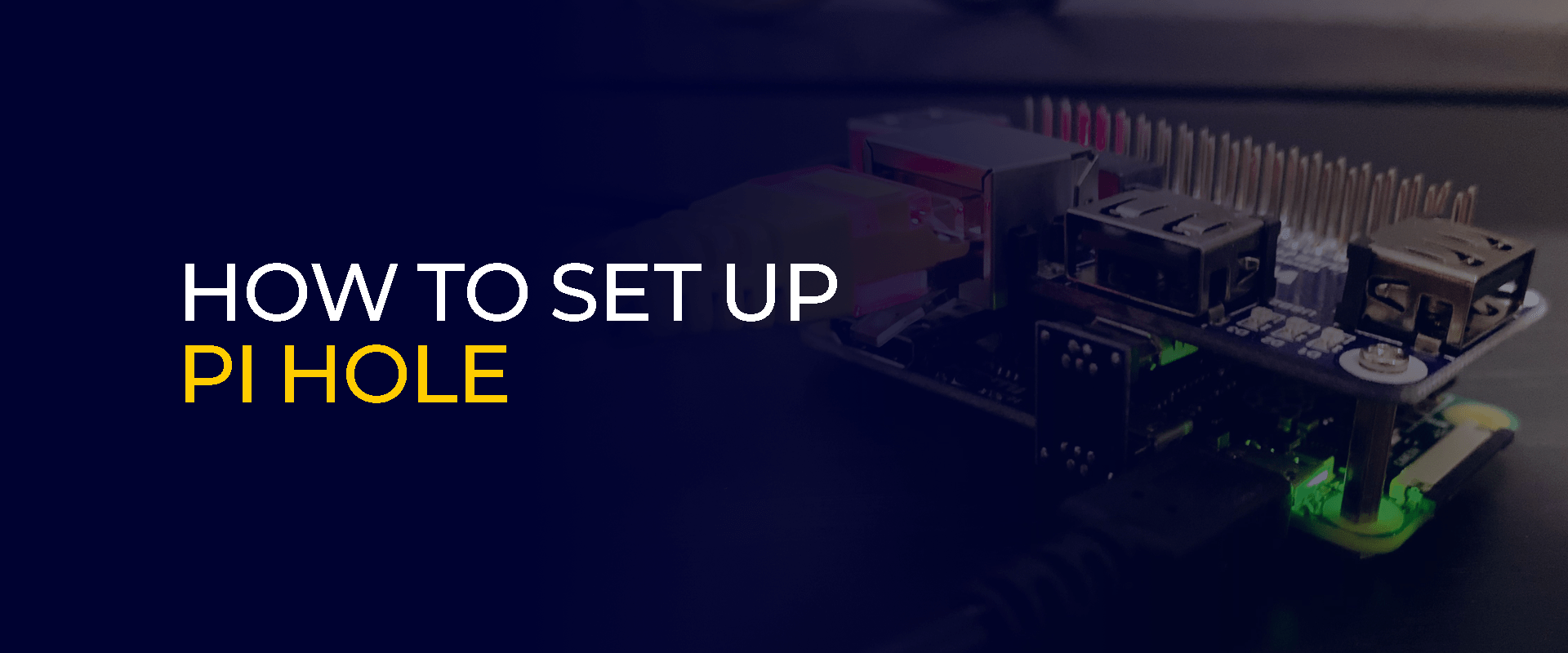
Regardless of its name, it’s not just for the tiny Raspberry Pi computer (though it runs flawlessly on one). Think of it as a network-wide ad blocker. It works by blocking network requests to known advertising and tracking domains.
This means every device on your Wi-Fi, your phone, your Smart TV, your partner’s laptop, your kid’s tablet, all get a cleaner, faster, and more private browsing experience. You wouldn’t even need to install anything on them.
If you’re having a hard time installing PiHole, our step-by-step guide will help you. Let’s get started.
Before You Begin, Here’s What You Need
We’ll get to the tutorials in just a bit, but before that, here are a few things you need:
The Hardware
Here’s what you need:
- A PC to run Pi-hole. A Raspberry Pi, preferably a model 3B or newer, is the best option. You can also use an old laptop, a tiny Intel NUC, or even a virtual machine. In short, you need something that can run a Linux-based operating system.
- A power source: You will need an appropriate power cable for your device.
- An Ethernet cable: This is highly required for a reliable connection; plug your Pi-hole device directly into your router. Wi-Fi usually works, but a wired connection is best for something that handles all your network traffic.
- A microSD card only if you’re using a Raspberry Pi: An 8GB or larger card is more than enough. You’ll need to install an operating system on it.
The Software
Here’s what you need:
- An operating system: For a Raspberry Pi, you’ll need Raspberry Pi OS. Download the “Lite” version (without a desktop) since this tutorial uses text commands. For other machines, a minimal version of Ubuntu Server works just fine.
- The Pi-hole software itself. This will be mentioned in the tutorial below.
How to Set Up Pi Hole (Step-by-Step Guide)
Here is how to get started:
Step 1: Installing the OS
To begin, you need to first install the basic operating system onto your device.
- For a Raspberry Pi: Use a tool like the Raspberry Pi Imager to write the Raspberry Pi OS Lite image to your microSD card. During this process, the Imager lets you pre-configure your Wi-Fi and enable SSH, which is a huge help. This lets you access your Pi from another computer on the same network.
- For other computers: Install your chosen Linux distribution like you normally would. The key is to have it boot to a command-line interface and connect to your network.
Once it’s booted up, find its IP address. Your router’s admin page usually has a list of connected devices. Write down this IP address; it’s your Pi’s network address.
Step 2: Installing Pi-Hole
- Now for the important part, on your main computer, open a terminal (on Mac/Linux) or an SSH client like PuTTY (on Windows). Connect to your Pi-hole device by typing:
ssh pi@[your-pi’s-IP-address]
(If you are using a Raspberry Pi OS, the username by default will be pi and the password raspberry. When you’re prompted to change this password, you should definitely do that.)
- Once you’re logged in, installing Pi-hole is a single and simple command. The developers have made it incredibly easy. Just type:
curl -sSL https://install.pi-hole.net | bash
- This command gets the installation script from the official source and runs it. A text-based interface will pop up to guide you through the setup.
Step 3: Walking Through the Installation
Now the installer will ask you a few questions, in which most will require you to only hit “Enter” to accept the default settings.
- Upstream DNS provider: This is a crucial step. Pi-hole will ask you to choose an upstream DNS provider. It’s like a phonebook that Pi-hole uses after it blocks the ads. I recommend going for a more privacy-focused one like Cloudflare (1.1.1.1) or Quad9 (9.9.9.9) from the list. Don’t settle on your ISP’s default.
- Block lists: It will prompt you to select which block lists to use. You can go for the default ones that catch a lot of junk. You can always add more later.
- Protocols: You can leave the IPv4 and IPv6 settings as they are.
- Static IP address: The installer will strongly recommend setting a static IP address for your Pi-hole device. This is a necessary step. If its IP address changes, your whole setup will break. The easiest way is usually to let the installer do it. You can alternatively reserve the IP address in your router’s settings, which is often the more reliable method.
- Admin web interface: Say “Yes” to installing the web admin interface. This is your control panel.
- Web server: The default web server is fine.
- Privacy level: You can select the “Show Everything” option to start.
Once you confirm, the installer will handle the rest. Towards the end, it shows you a screen with a crucial piece of information: the password for the web interface. Ensure you write this password down. You will need it to sign in; you can always change it later.
Step 4: Setting the Router to Use Pi Hole
Your Pi-hole is now running, but it’s not working yet. The final and most important step is to tell your router to use the Pi-hole for all DNS queries.
To do this, you need to change the DNS settings in your router’s configuration page. Here’s how:
- Go to your router’s admin page (often something like 192.168.1.1 or 192.168.0.1).
- Log in. If you don’t have the password, you can check your router’s manual.
- Find the DNS settings. You can normally find them in the “Internet” or “WAN” section.
- Locate where it says “DNS Server.” You will see something like “Get Automatically from ISP.” Change this to “Use Custom DNS Server.”
- Enter the static IP address of your Pi-hole device. You might have two fields; put the IP in both.
- Save the settings and reboot your router.
Lastly
Once your router comes back online, here’s where all the work begins. If you have any device connected to your Wi-Fi, try going to a website that is usually flooded with ads. You will now be able to see a much cleaner page. Sometimes ads are replaced with blank spaces, which is a sign that Pi-hole is working, blocking the request to load ads.
If you’d like to see Pi Hole in action or how it’s working, open a browser on any computer and go to http://pi.hole/admin. You can also type your Pi-hole’s static IP address directly into the address bar.
Now, log in with the password you saved. Here, you’ll see a dashboard showing you how many DNS queries your network is making and the percentage that Pi-hole is blocking.
This makes it easier for you to have control over your own network. You’ve not created a faster internet experience and decluttered, but you’ve managed to increase online privacy.
Take Control of Your Privacy Today! Unblock websites, access streaming platforms, and bypass ISP monitoring.
Get FastestVPN
Subscribe
0 Comments



