You can see how this popup was set up in our step-by-step guide: https://wppopupmaker.com/guides/auto-opening-announcement-popups/
Windows Update Error 0x80070643: Causes, Fixes, and Prevention
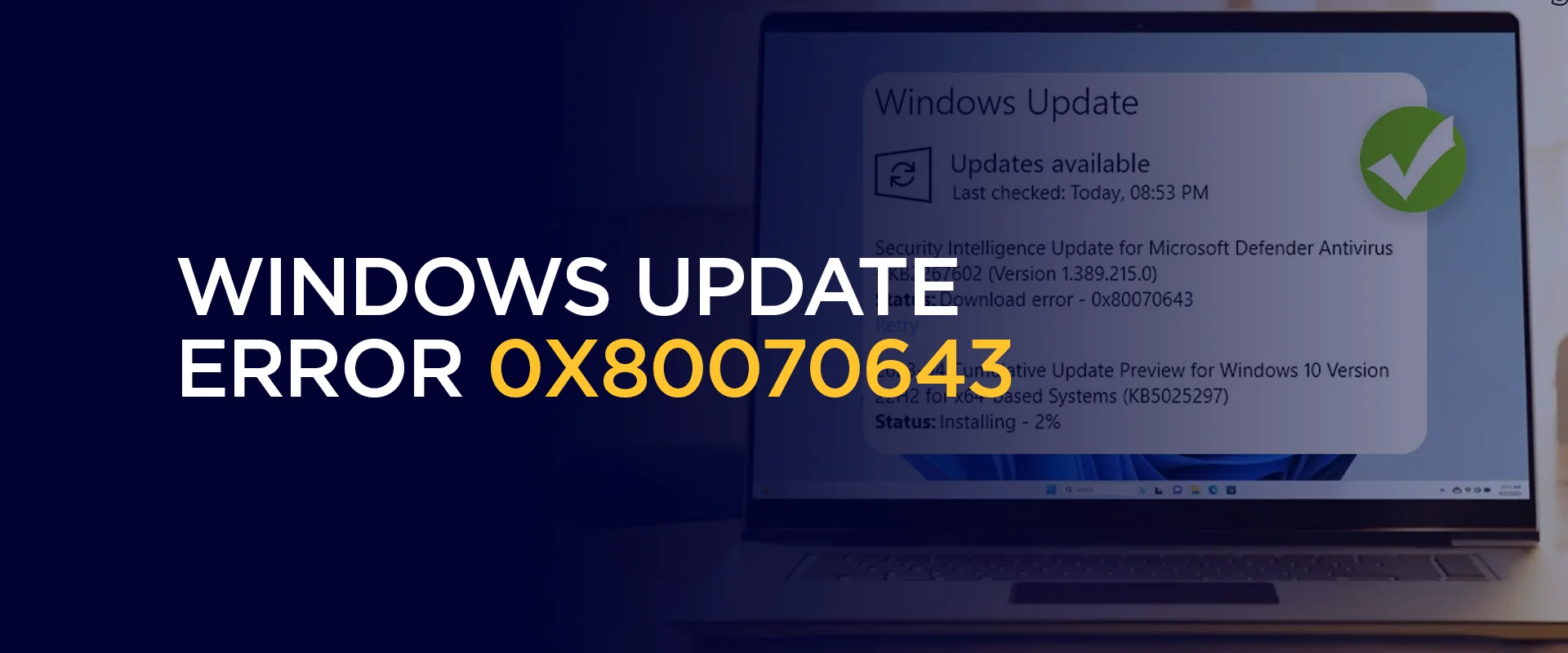
Few things are more frustrating than trying to keep your PC up to date, only to be stopped in your tracks by a cryptic error code. One of the most commonly reported issues among Windows users is the Windows update error 0x80070643. This error typically appears when Windows Update or sometimes a related component like the .NET Framework fails to install correctly, leaving your system stuck mid-update.
Note: Be cautious with your overall online security setup. Beyond just Windows Update, it’s worth thinking holistically about how you protect your system. Many users pair good update hygiene with broader privacy and security tools, such as a trusted VPN service like FastestVPN, to keep their overall online activity more secure while browsing or downloading files from less familiar sources.
What Is Windows Update Error 0x80070643?
The Windows Update error 0x80070643 is a Windows Update failure code that generally translates to “installation failed.” While the error can technically appear during various update processes, it’s most frequently associated with:
- Failed .NET Framework updates
- Failed cumulative updates for Windows 10 or Windows 11
- Issues installing security patches
- Problems with the Windows Update Standalone Installer
When this error appears, Windows Update typically halts the installation process and displays a message indicating that one or more updates couldn’t be installed. The PC may prompt you to restart and try again, but simply retrying often doesn’t resolve the underlying issue.
Common Causes of the 0x80070643 Error
Before diving into fixes, it helps to understand what’s actually causing this error in the first place. Some of the most common root causes include:
Corrupted System Files
Windows relies on a complex set of system files to manage updates if any of these files become corrupted, whether due to a previous failed update, malware, or an unexpected shutdown, the update process can fail with this error code.
Damaged Windows Update Components
The Windows Update service itself depends on several supporting components, including the Windows Update database and various background services. If any of these become damaged or misconfigured, updates can fail to install properly.
Issues with .NET Framework
A large number of 0x80070643 errors are tied specifically to .NET Framework updates. Since many other applications and Windows features rely on the .NET Framework, a corrupted or incomplete installation of this framework can trigger update failures.
Third-Party Antivirus Interference
Some third-party antivirus or security software can mistakenly flag Windows Update processes as suspicious activity, blocking necessary files from being installed or modified.
Insufficient Disk Space
Windows updates, especially larger cumulative updates, require a reasonable amount of free disk space to download, extract, and install files. If your system drive is nearly full, the update may fail partway through.
Pending Updates or Incomplete Previous Installations
If a previous update didn’t fully complete or is stuck in a pending state, it can interfere with new updates trying to install, resulting in conflicts that trigger this error.
How to Fix Windows Update Error 0x80070643
Now that we’ve covered the likely causes, let’s walk through the most effective solutions. Work through these methods in order, starting with the simplest, and test Windows Update after each step to see if the issue has been resolved.
Solution 1: Run the Windows Update Troubleshooter
Windows includes a built-in troubleshooting tool specifically designed to detect and fix common update problems automatically.
- Open Settings and navigate to System > Troubleshoot > Other troubleshooters.
- Locate Windows Update in the list and click Run.
- Allow the tool to scan for issues and apply any recommended fixes.
- Restart your computer and attempt the update again.
This simple step resolves the issue for a surprising number of users, as it can automatically repair common configuration problems behind the scenes.
Solution 2: Restart Windows Update Services
Sometimes the Windows Update service itself gets stuck or corrupted in memory. Restarting the relevant services can clear up temporary glitches.
- Press Windows + R, type services.msc, and press Enter.
- Locate Windows Update in the list, right-click it, and select Restart.
- Do the same for Background Intelligent Transfer Service (BITS) and Cryptographic Services.
- Try running Windows Update again afterward.
Solution 3: Clear the Windows Update Cache
Leftover or corrupted update files in the cache folder are a frequent cause of installation failures.
- Open Services (services.msc) and stop the Windows Update service.
- Navigate to C:\Windows\SoftwareDistribution using File Explorer.
- Delete all the contents inside the SoftwareDistribution folder (you may need administrator permission).
- Restart the Windows Update service.
- Attempt the update again.
This forces Windows to re-download update files from scratch, which often resolves corruption-related errors.
Solution 4: Run the System File Checker (SFC) and DISM Tools
These built-in command-line tools scan for and repair corrupted system files, which can be a root cause of the 0x80070643 error.
- Open Command Prompt as an administrator.
Type the following command and press Enter:
sfc /scannow
Once the scan completes, run the following DISM commands one at a time:
DISM /Online /Cleanup-Image /CheckHealthDISM /Online /Cleanup-Image /ScanHealthDISM /Online /Cleanup-Image /RestoreHealth
- Restart your PC and try the update again once the commands finish.
Solution 5: Repair or Reinstall .NET Framework
If the error specifically occurs during a .NET Framework update, repairing this component directly often resolves the issue.
- Open Control Panel > Programs and Features > Turn Windows features on or off.
- Locate .NET Framework entries in the list, uncheck them, restart your computer, then re-enable them.
- Alternatively, download and run the official .NET Framework Repair Tool from Microsoft’s website, which automatically detects and fixes common installation issues.
Solution 6: Temporarily Disable Third-Party Antivirus Software
If you suspect your antivirus software might be interfering with the update process, try temporarily disabling it before attempting the update again.
- Open your antivirus software and disable real-time protection temporarily.
- Run Windows Update once more.
- Remember to re-enable your antivirus software immediately after the update completes, since leaving your system unprotected for extended periods isn’t recommended.
If the update succeeds with antivirus disabled, consider checking for an updated version of your security software, or adding Windows Update folders to its exclusion list rather than disabling protection long-term.
Does Error 0x80070643 Only Affect Windows 10
No. While many reports of this error involve Windows 10, it can also occur on Windows 11 and even older versions like Windows 7 and 8.1. The underlying causes corrupted system files, damaged update components, or .NET Framework issues are similar across all these versions, and most of the fixes outlined in this guide apply regardless of which version of Windows you’re running.
Will I Lose My Files If I Use the DISM or SFC Tools to Fix this Error
No, running sfc /scannow or the DISM commands does not delete your personal files. These tools are designed to scan and repair Windows system files specifically, leaving your documents, photos, and installed applications untouched. However, it’s always a good practice to back up important files regularly, regardless of what troubleshooting steps you’re performing.
How Long Does It Take to Fix the Windows Update Error 0x80070643
This depends on which solution resolves the issue for your specific situation. Running the built-in troubleshooter or restarting update services typically takes just a few minutes. Clearing the update cache and running SFC/DISM scans can take 15–30 minutes, depending on your system’s speed. In rare cases where a full reset of Windows Update components or a .NET Framework reinstallation is required, the process might take closer to an hour.
Can a Clean Boot Help Fix this Error
Yes. Performing a clean boot, starting Windows with a minimal set of drivers and startup programs, can help determine whether a third-party application or service is interfering with the update process. If the update installs successfully during a clean boot, you’ll know that something running in the background under normal conditions is causing the conflict, and you can narrow it down by re-enabling startup items one at a time.
Is It Safe to Manually Delete Files in the SoftwareDistribution Folder
Yes, this is a commonly recommended and safe troubleshooting step. The SoftwareDistribution folder simply stores temporary update files that Windows uses during the download and installation process. Deleting its contents doesn’t affect your personal data or installed programs. Windows will simply redownload whatever update files it needs the next time it checks for updates.
When to Consider a More Advanced Fix
If none of the solutions above resolve the Windows update error 0x80070643, there are a couple of more advanced options worth considering:
Manually Download and Install the Update
Visit the Microsoft Update Catalog website, search for the specific update (using its KB number, which is usually listed in your update history), and download the standalone installer package directly. Installing the update manually sometimes bypasses whatever issue is causing Windows Update to fail through the normal process.
Reset Windows Update Components Completely
Microsoft provides a more thorough reset process that clears out and rebuilds nearly every component related to Windows Update, including the update database, registry keys, and related folders. This is a more involved process typically reserved for persistent issues that survive all other troubleshooting attempts, and it’s often best performed by following Microsoft’s official support documentation step by step to avoid mistakes.
Perform an In-Place Upgrade
If your system has accumulated a long history of update issues, performing an in-place upgrade (reinstalling Windows over your existing installation without erasing your files) can effectively rebuild many core system components, including those tied to Windows Update, while preserving your personal files and most installed applications.
Tips to Prevent Future Update Errors
Once you’ve resolved the current error, a few ongoing habits can help reduce the chances of running into similar update issues down the road:
- Keep enough free disk space. Aim to maintain at least 20GB of free space on your system drive to comfortably accommodate larger cumulative updates.
- Install updates promptly. Letting updates pile up increases the complexity of each installation attempt and raises the risk of conflicts.
- Avoid interrupting updates. Don’t shut down or restart your PC manually while an update is actively installing, as this can corrupt update files and create new errors.
- Keep your antivirus software updated. Outdated security software definitions are more likely to misidentify legitimate Windows processes as threats.
- Run periodic system file scans. Occasionally, running sfc /scannow even when you’re not experiencing an active error can catch and fix minor corruption before it causes update failures.
Final Thoughts
The Windows update error 0x80070643 can be frustrating, especially when it blocks important security patches or feature updates from installing. Fortunately, this error is well-documented and, in the vast majority of cases, fixable using the built-in tools Windows already provides, from the Windows Update Troubleshooter to the SFC and DISM repair commands.
Start with the simplest fixes, like restarting update services and clearing the update cache, before moving on to more involved solutions like repairing .NET Framework or resetting Windows Update components entirely. With a methodical approach, you should be able to get your system updating normally again, and the preventive habits outlined above can help you avoid running into this particular error in the future.
Take Control of Your Privacy Today! Unblock websites, access streaming platforms, and bypass ISP monitoring.
Get FastestVPN
Subscribe
0 Comments