
You can see how this popup was set up in our step-by-step guide: https://wppopupmaker.com/guides/auto-opening-announcement-popups/
How to Use FaceTime on Android and PC (Easy Step-by-Step Guide)
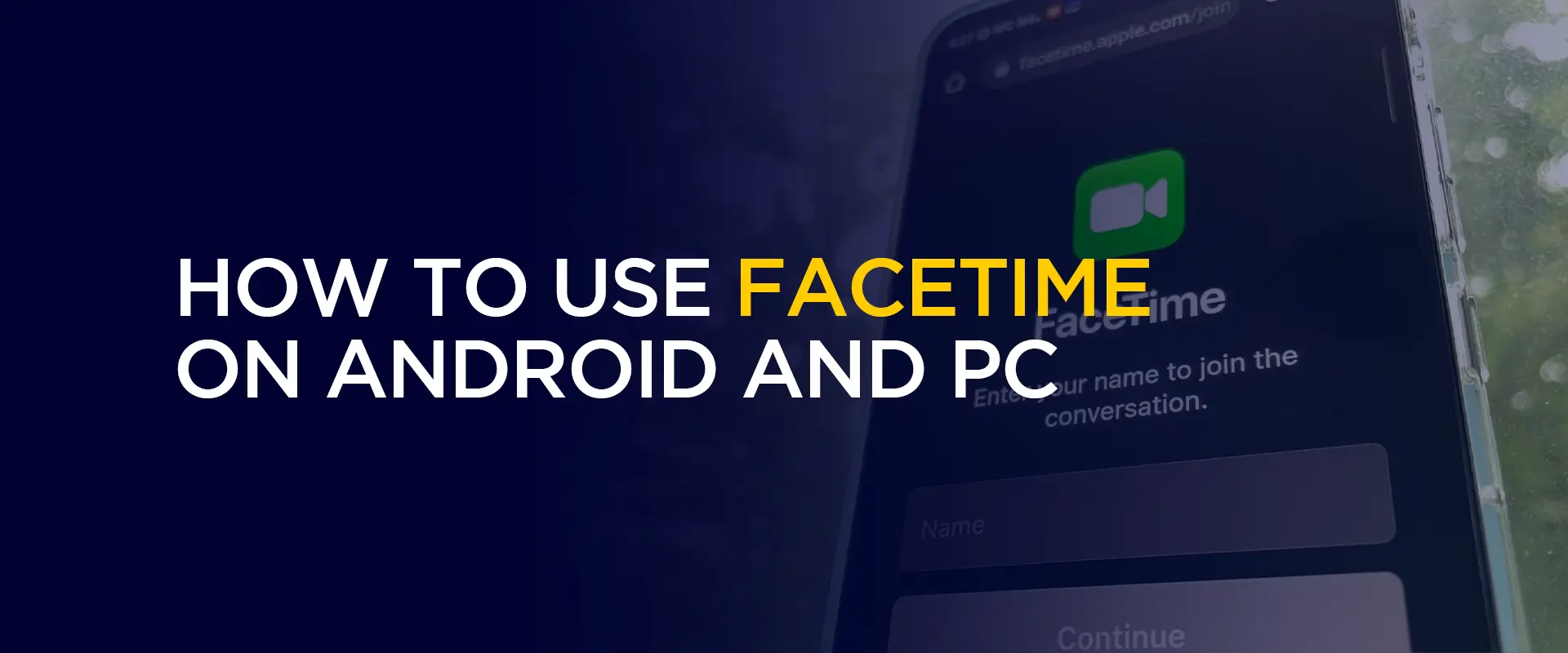
Is FaceTime meant only for Apple users? Primarily yes, but can you use FaceTime on an Android or PC? If you’re surprised, it’s a common reaction from most people. You can actually use FaceTime on an Android phone. I know, it might sound like it doesn’t fit, considering FaceTime is mainly an Apple thing for iPhones and Macs. However, this is a misconception of most users over the years. This guide shows you how to use FaceTime on Android phones and your PC if needed.
TIP – Even though FaceTime is a safe and popular app, you’ll never know the damage it can create when hacked via using free or public WiFi. For this reason, connect with the best VPN for your device. It encrypts your connection, protects your device and data, and masks your IP address.
In 2021, when Apple released iOS 15, it quietly added a feature that lets Android users jump into FaceTime calls. However, even though you can use FaceTime on Android, it doesn’t mean you can download or start a FaceTime call from your Samsung or Pixel.
It only works if someone with an iPhone sends you a link; you can join their video call right from your phone’s web browser. With that said, this guide shows you how to use FaceTime on PC and Android.
Before You Learn How to Use FaceTime on Android, Here’s What You Should Know
Just before you get into the steps, there is one limitation you need to know about. Even though you can join a FaceTime call on Android, you cannot start one. Period. The call has to be made or created by someone using an iPhone, iPad, or Mac. They will need to create a link, send it to you, and then let you join as a guest.
If you want to be the one who starts the video calls, especially for business meetings, it’s best that you use Google Meet, Zoom, WhatsApp, or Microsoft Teams. Those apps work great on both iPhone and Android, and anyone can start a call.
What You Will Need on Your Android Phone
Here are a few things you need to get started:
- Google Chrome or Microsoft Edge web browsers; Firefox and Safari won’t work.
- A working camera and microphone, and ensure you allow the browser to use them when asked for permission.
- A FaceTime link from someone with an iPhone. It will look something like https://facetime.apple.com/join/ followed by a bunch of random letters and numbers.
That’s all.
How to Use FaceTime on Android
Now that you have what you need to get started, here’s what to do next:
- Once you get the FaceTime link, open it on either Chrome or Edge when prompted. If another browser opens automatically, copy the link and paste it manually into Chrome or Edge.
- Enter the name you want others to see on the “Join FaceTime” screen.
- Tap “Continue.”
- Tap “Allow” when the browser asks for camera and microphone permissions. Without camera permission, it’ll be a blank screen, and without the mic, there’ll be no sound.
- Tap the blue “Join” button.
- You’ll see “Waiting to be let in.” At the same time, the iPhone user must “Admit” you from their end.
- Once they confirm, you’re added to the call.
- Start talking! If you need to leave, close the browser tab or tap the leave button on your screen.
FaceTime on Android Not Working – Troubleshooting Guide
Things might go wrong or not as planned; it happens. Sometimes technology simply does not cooperate. Here are the most common problems and how to fix them:
Link is Opening a Blank Page
Make sure you are using Chrome or Edge and not other browsers. This is one of the most important steps. People often try to open the link in Firefox, Samsung Internet, or Opera, thinking it would work the same, but it won’t.
Camera Permissions On But Still Can’t Be Seen
Check that your camera is not already being used by another app. If you have the camera app open in the background or if another video app is running, close everything. Also, try refreshing the browser tab or rejoining the call.
Call Keeps Disconnecting
FaceTime or any video-calling app always works better with a stable internet connection. If your internet is a little shaky, it’ll cause connection issues. So, if your WiFi isn’t working, switch to data and to an area where signals are most powerful. Video calls eat up data, but a thirty-minute call uses a little around 100 to 200 MB.
Link Not Received
Sometimes, it takes longer for a link to reach you. If you haven’t received it, ask the person inviting you to send it again. It’s usual for links to get lost in the Spam folders/filters. They can also copy the link and paste it directly into a message instead of using the share menu.
FAQs – How to Use FaceTime on Android
No, there is no way to directly initiate a FaceTime call from Android. You can, however, join a FaceTime call on your Android device made from an iPhone or Mac. You can’t. Anyone with an Android device does not have the ability to start a FaceTime conversation on their own, nor can they install the FaceTime application. However, they can pick up or join a call by opening a browser link that someone with an iPhone (running iOS 15 or newer) creates and shares. Yes, you can do a video call between Android and iPhone. However, only the iPhone user will be able to create the call. Android users can answer FaceTime calls, but not download the app for it. No, you cannot download the FaceTime app on Android devices. However, you can pick up a call that was created by iPhone users. Can you start a FaceTime on Android phone?
How do I make a FaceTime call from my Android to an iPhone?
Can you do a video call on FaceTime between Android and iPhone?
Can I download FaceTime app on Android?
To Conclude
You now know how to use FaceTime on Android, and the same goes for PC. I have used this FaceTime link feature quite a few times, both as the iPhone user inviting Android friends and as the Android user joining someone else’s call. It works fine.
The video quality is good, the audio is clear, and there’s no need to install other third-party apps. However, keep an eye out for fake apps if you do happen to fall into installing them.
Take Control of Your Privacy Today! Unblock websites, access streaming platforms, and bypass ISP monitoring.
Get FastestVPN
Subscribe
0 Comments



